Monitors
Filter a monitor by section, row and price
A monitor's filters live in its filter set and decide which changes become alerts. Sections and Rows restrict where in the venue, Min price and Max price restrict what you would pay, Seats requires that many seats together, the stock fields set levels and change sizes, and Ticket types decides which kinds of listing count. Every field is optional: an empty field does not filter, and the fields shown depend on what the ticketing site supports.
Before you start
- A monitor you can edit, on a site whose filters you want to narrow.
- The section or row names as the ticketing site writes them, for the venue map to match them.
Steps
Open the filter set
Edit the monitor from its Watchlist row, or set the filters while adding it. The filter set card holds every rule for this monitor; the fields it shows are the ones the site supports, so two sites rarely look the same.
Fields in the card show Any when they are empty, which is the reminder that an empty field matches everything rather than nothing.
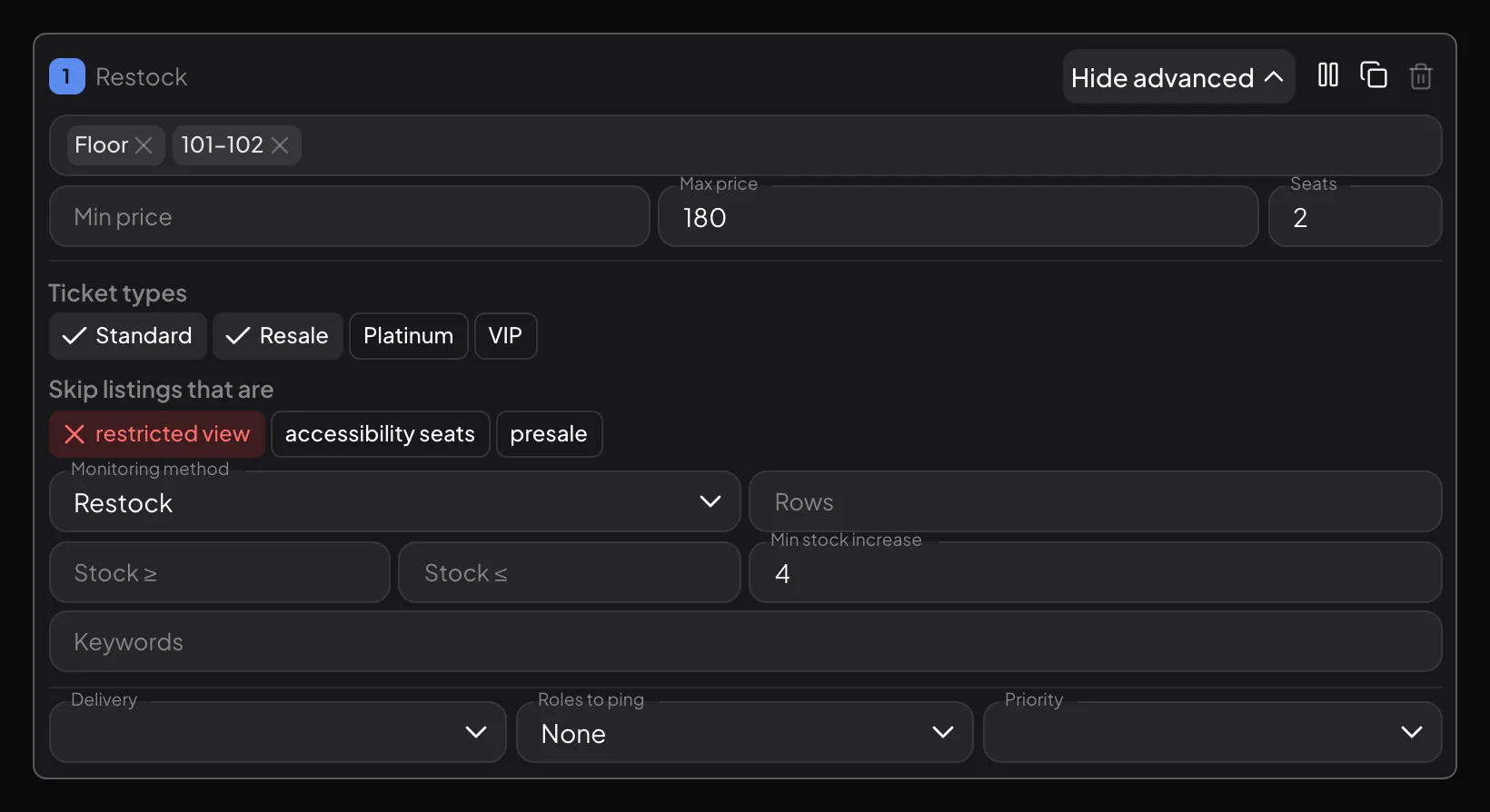
One filter set with Advanced open: the sections as chips, the price range and seats, the ticket types and the listings to skip, then the monitoring method, rows, stock bounds, minimum restock size, keywords and the delivery row. Restrict the sections
The Section field takes the section names you care about, each as its own chip, and on the sites with a venue map you can click the map instead of typing. A run of neighbouring sections is shown as a range, such as 101-102, so you can watch the floor and the first tier without touching the rest of the arena.
Section names that start with a dash need to be escaped by doubling it, because a leading dash means exclusion. The field tells you by refusing to match otherwise, and the editor writes the escape for you when you pick the section from the map.
Note: Type a section name and move on without pressing Enter and the token can be dropped. Check the tokens are really there, as chips, before you save.
Use keywords where sections do not exist
Some sites do not publish sections at all; for those, Keywords takes their place and matches the text of the offer, such as floor or front row. The placeholder shows the expected shape.
Keywords are also useful on sites that do have sections, as a catch-all for listings whose section name is inconsistent between releases.
Set the price band and the seats
Min price and Max price bound what you want to hear about: a change only counts when the listings fall inside the band. They narrow a stock alert; they do not fire on a price move by themselves, as explained in monitoring methods.
Seats is the number of seats that have to be available together. It is the field that separates a usable alert from a technically-true one: two single seats in a sold-out arena are not a pair, and a Seats value of 2 says so.
Open Advanced for rows, stock and ticket types
Advanced reveals the rest. Rows takes row numbers the same way Section takes sections. Stock ≥ and Stock ≤ bound how much stock the event has to have in total for an alert to be worth sending, which is a level, not a change.
Ticket types is a row of chips, Standard, Resale, Platinum and VIP on the sites that tell them apart, and only the ticked ones count. Skip listings that are lets you drop restricted view, accessibility seats and presale listings outright. Priority orders the monitor against your others when several fire at once, and Roles to ping names the Discord roles the alert mentions.
- Rows: specific row numbers, as tokens.
- Stock ≥ and Stock ≤: the total stock the event must have.
- Min stock increase or Min stock decrease: how big the change must be.
- Ticket types and Skip listings that are: which listings count, and which are dropped.
- Priority and Roles to ping: how the alert is ranked and who it mentions.
Save and watch what arrives
Save the monitor; the next check uses the new filters. The Watchlist row then summarises the filter set in one line, so you can read a whole page of monitors without opening any of them.
Treat the first day of alerts as calibration. Too many pings means a filter is too loose, and complete silence on a busy event usually means one field is too tight rather than that the monitor is broken.
An empty field is not a blocked field
The single most common setup mistake is assuming an empty filter blocks everything. It is the opposite: an empty field means no restriction, which is why a brand-new monitor is loud. Filters subtract from a stream that starts complete.
That is also why over-filtering is the harder failure to spot. A monitor with a section, a row, a tight price band and a four-seat minimum will be silent for weeks, and nothing in the interface can tell you whether that silence is a quiet event or a filter that can never match.
Why two sites show different fields
Eventory only shows the filters a site actually supports, recorded per site and region. A site that does not expose sections has no Section field; one that does not publish prices has no price fields. This keeps you from setting a filter that would silently do nothing.
The practical consequence is that the same event on two sites can need two different filters, and copying a filter set between sites is not always possible. Each site's page in the supported sites list states which alerts and filters it offers.
Reusing a filter you have already tuned
When you have a filter that works, save it as a quick filter preset and apply it to the next monitor in one click. A preset is copied onto the monitor when applied, so later edits to the monitor do not change the preset and vice versa.
Applying the same filter to many existing monitors at once is a bulk edit instead; see Manage your watchlist.
Frequently asked questions
Does a section filter also cover similarly named sections?
It matches the section names you entered as the site writes them. Add each variant as its own token, or use a keyword when the site's naming is inconsistent.
My section starts with a dash and nothing matches. Why?
A leading dash means exclusion. Double it to escape it, or pick the section from the venue map, which writes the escape for you.
What is the difference between Seats and Min stock increase?
Seats is how many seats have to sit together in one listing. Min stock increase is how many tickets have to appear across the restock. A restock of 50 singles passes a Min stock increase of 50 and fails a Seats of 2.
Can I exclude restricted-view or resale listings?
Yes, on the sites that mark them. Untick Resale in Ticket types to ignore resale listings, and use Skip listings that are to drop restricted view, accessibility seats or presale listings.
Why did my filter not save?
Usually because a typed token was never committed and the field was empty on save. Confirm every section or row shows as a chip before saving.
Next steps
- Choose what a monitor reacts to
- Run several filter sets on one event
- Cut down alert noise
- Find and manage your monitors
Start monitoring
Pick a plan, add your events and let Eventory tell you the moment tickets come back.
API documentation: the reference for developers, next to these guides.