Alerts & delivery
Cut down alert noise
Alert noise is almost always one or two monitors on high-volume events with no filters, not a general setting. Fix it in order: set a minimum restock size so trivial changes stop pinging, restrict sections and require seats together, bound the price, then split the loud monitors into their own delivery channel. Muting is the stopgap while you tune, not the fix.
Before you start
- A Watchlist that is producing more alerts than you read, and the monitors to edit.
Steps
Find out which monitors are actually loud
Open Notifications, switch to Compact list and filter by website. A handful of events usually account for most of the volume, and they are rarely the ones people blame.
Note the two or three worst offenders before changing anything. Tuning filters across a whole Watchlist at random is how a workspace ends up silent on the events that matter.
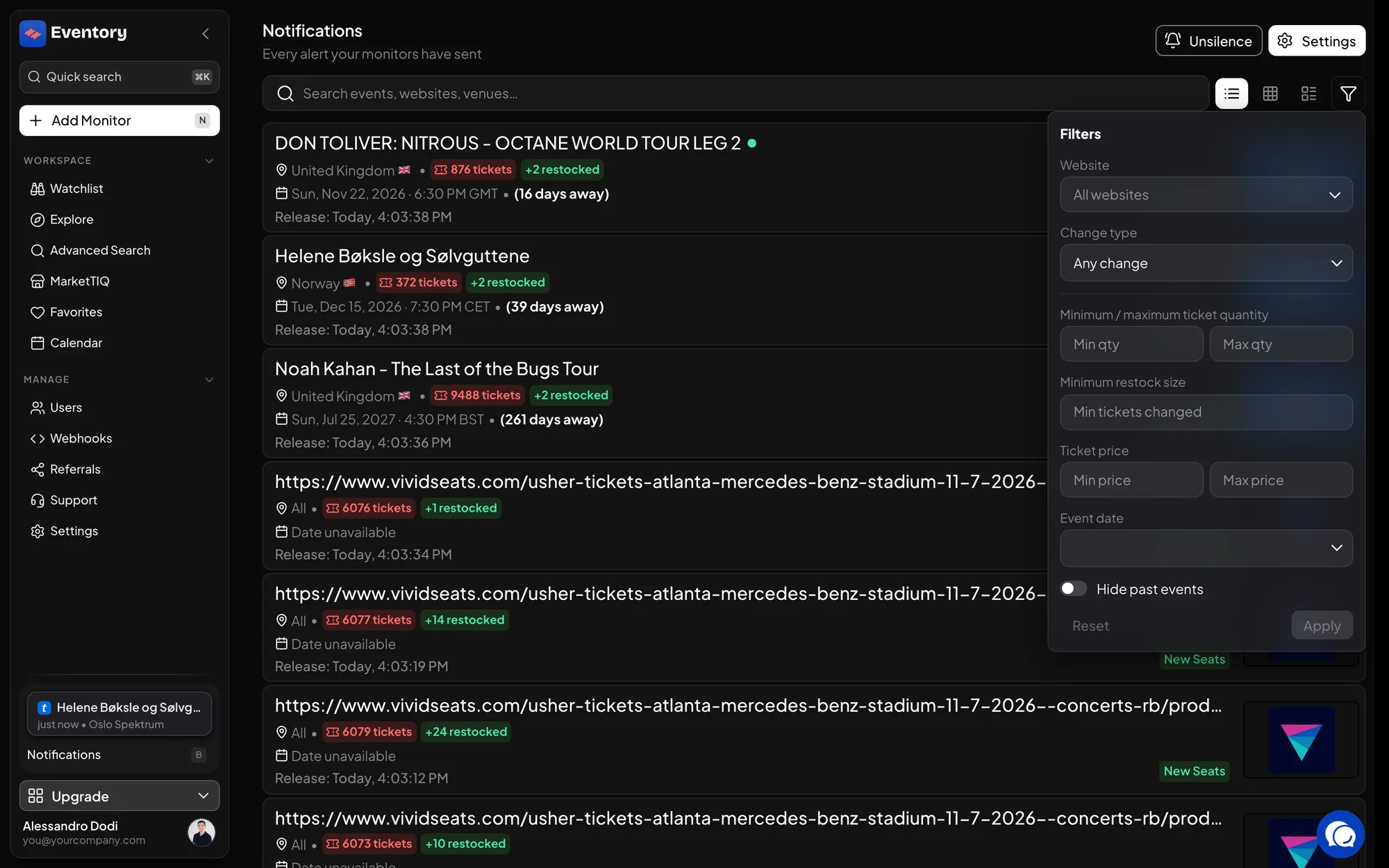
Narrow the feed to one website in the filter panel to see which events produce the volume. Set a minimum restock size
On each loud monitor, set Min stock increase. It counts tickets: at 50, a restock of 10 is ignored and a restock of 50 or more still pings. This single field removes more noise than everything else combined, because most restocks are tiny.
For a stock-decrease monitor the equivalent is Min stock decrease. Both describe the size of the change, not the level of stock on the event.
Restrict where in the venue you care about
Add the sections you would actually buy, and set Seats to the number of seats you need together. A restock of singles in the back is technically a restock and practically nothing.
On sites with a venue map you can click the sections instead of typing them, which avoids the naming mistakes that make a filter match nothing.
Bound the price
Set Max price to what you would pay. On an event where the interesting listings are a narrow band, this turns a stream into a short list.
If you are watching the market rather than buying, a Tracker on get-in or average price is the better tool: it tells you about repricing without you reading every listing that appears.
Split the loud ones into their own channel
Some events are legitimately busy and you still want everything they do. Give those monitors their own delivery so they stop drowning the channel everyone else is reading.
The same trick works with filter sets inside one event: the narrow, high-value rule goes to the channel people watch, the broad one to a channel they check.
Mute while you work, then stop muting
Mute is time-boxed: the row resumes on its own. That makes it right for an on-sale you are already watching by hand, and wrong as a permanent fix, because a muted row looks active and will come back.
If you find yourself muting the same monitor every week, that monitor needs a filter, not another mute.
The order matters
Work from the size of the change, to where it is, to what it costs. Each step cuts volume without cutting the alerts you would have acted on, and you can stop as soon as the channel is usable.
Doing it in the other order, starting with a tight price band, is what produces a silent Watchlist. A price filter removes exactly the alerts whose price you were about to check.
Signs you have over-filtered
Over-filtering is harder to notice than noise, because nothing happens. These are the tells.
- A busy event has sent nothing for a week while similar events keep alerting.
- A monitor has a section, a row, a price band and a seats requirement all set at once.
- The filter summary on the row reads longer than the event name.
- You set a tight price band expecting it to tell you about price moves; it only decides which restocks count.
Noise that is not a filter problem
Duplicate alerts on the same event usually mean two monitors on two sites, or two filter sets that overlap. That is working as configured: narrow one of them, or accept the duplication because the two sites are genuinely different purchases.
Alerts for events that already happened are a Watchlist hygiene problem rather than a filter one. Filter by Event date and delete the past.
Frequently asked questions
Is there a global setting to send fewer alerts?
No, and that is deliberate: the right threshold on a 200-ticket arena show is wrong on a 20-ticket club show. The filters are per monitor so each event can be tuned to what it does.
Will a minimum restock size make me miss a drop of two good seats?
Yes, if you set it above two. Use Seats to require seats together and keep the restock size low when the quantity you need is small.
Does muting stop the alert reaching Discord?
Yes, for as long as the mute lasts. When it expires the row alerts again with no action from you.
Can I filter the dashboard without changing the monitors?
Yes. The Notifications page filters only your view, which is the safe way to experiment with a threshold before you commit it to a monitor.
Next steps
Start monitoring
Pick a plan, add your events and let Eventory tell you the moment tickets come back.
API documentation: the reference for developers, next to these guides.