Alerts & delivery
Read your notifications
The Notifications page is one list that combines the live stream with the stored history, so alerts arrive at the top as they happen and older ones stay available as you page back. Each notification carries the event, the site, the sections that changed, the quantity and the price, with a link to the listing. The filter menu narrows the list by website, change type, ticket quantity, minimum restock size, price band and how soon the event is.
Before you start
- A signed-in session. The live stream only runs while you are signed in.
Steps
Open the page and let it stream
Go to /notifications. New alerts appear at the top of the first page as they happen, and the same alerts are written to the history, so closing the tab loses nothing.
Because the live stream and the history are one list, paging back is continuous: there is no separate archive to go and look in.
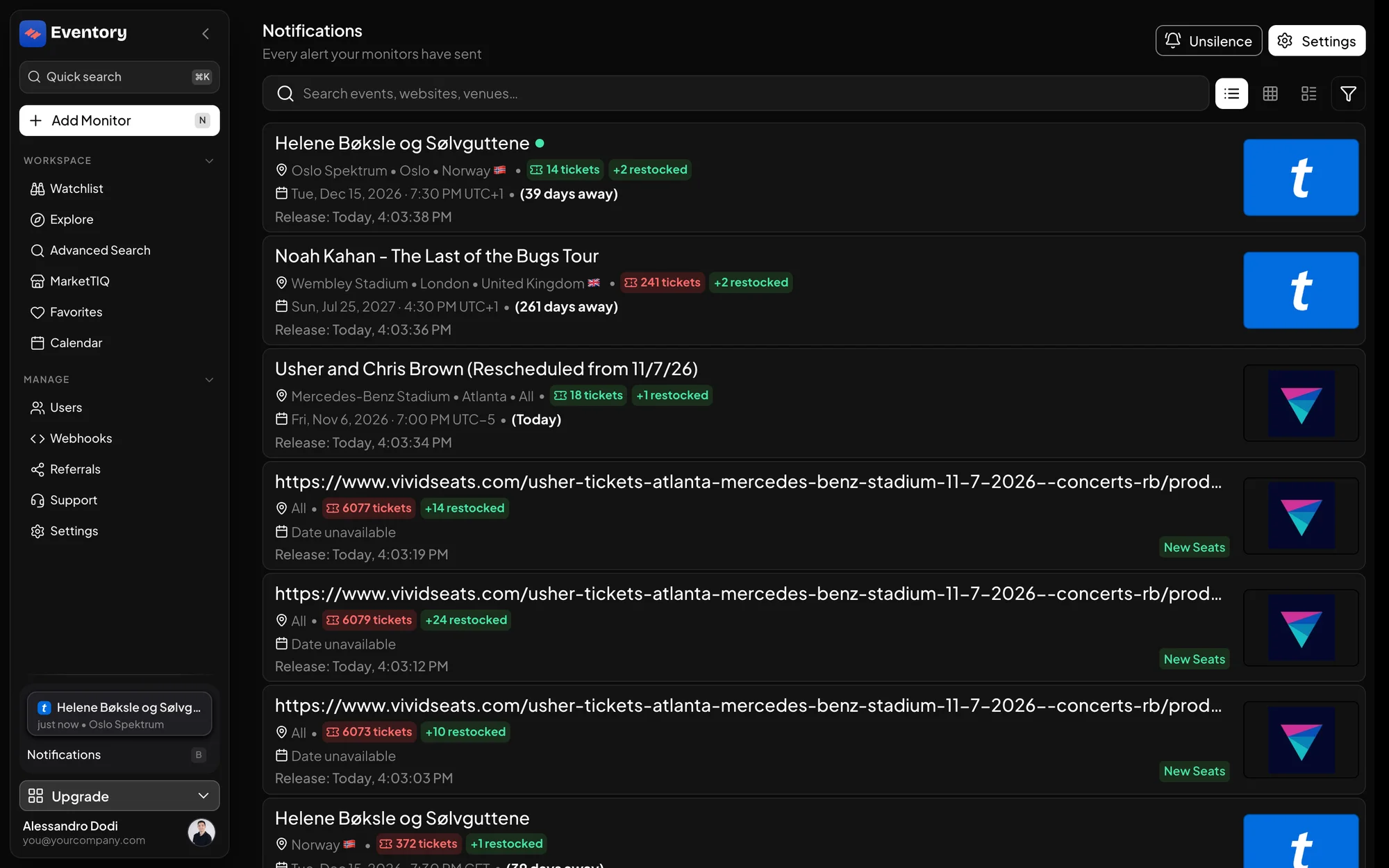
The Notifications page: search, the view and filter icons at the top right, and one card per alert. Pick a view mode
The view toggle switches between Detailed cards and Compact list. Cards show the sections, the prices and the venue map for one alert at a time, which is what you want during an on-sale you are working.
Compact list fits far more on screen and is the better mode for reviewing what happened overnight, or for judging the volume a new monitor is producing.
Filter down to what matters
Open the filter menu. Website and the change type are applied to the query itself, so they page back through the whole history; the rest are applied to the alerts on screen.
The filter count on the menu tells you how many filters differ from their defaults, which is the reminder you need when a list looks suspiciously quiet.
- All websites, or one site.
- Any change, Restock, Stock decrease, Price increase or Price decrease.
- Min qty and Max qty: the event's total ticket quantity.
- Min tickets changed: the minimum restock size, from the per-cycle change.
- Min price and Max price: matches when any offer in the alert falls in the band.
- Event window: the next 3, 7, 30 or 90 days, or any date; plus hiding past events.
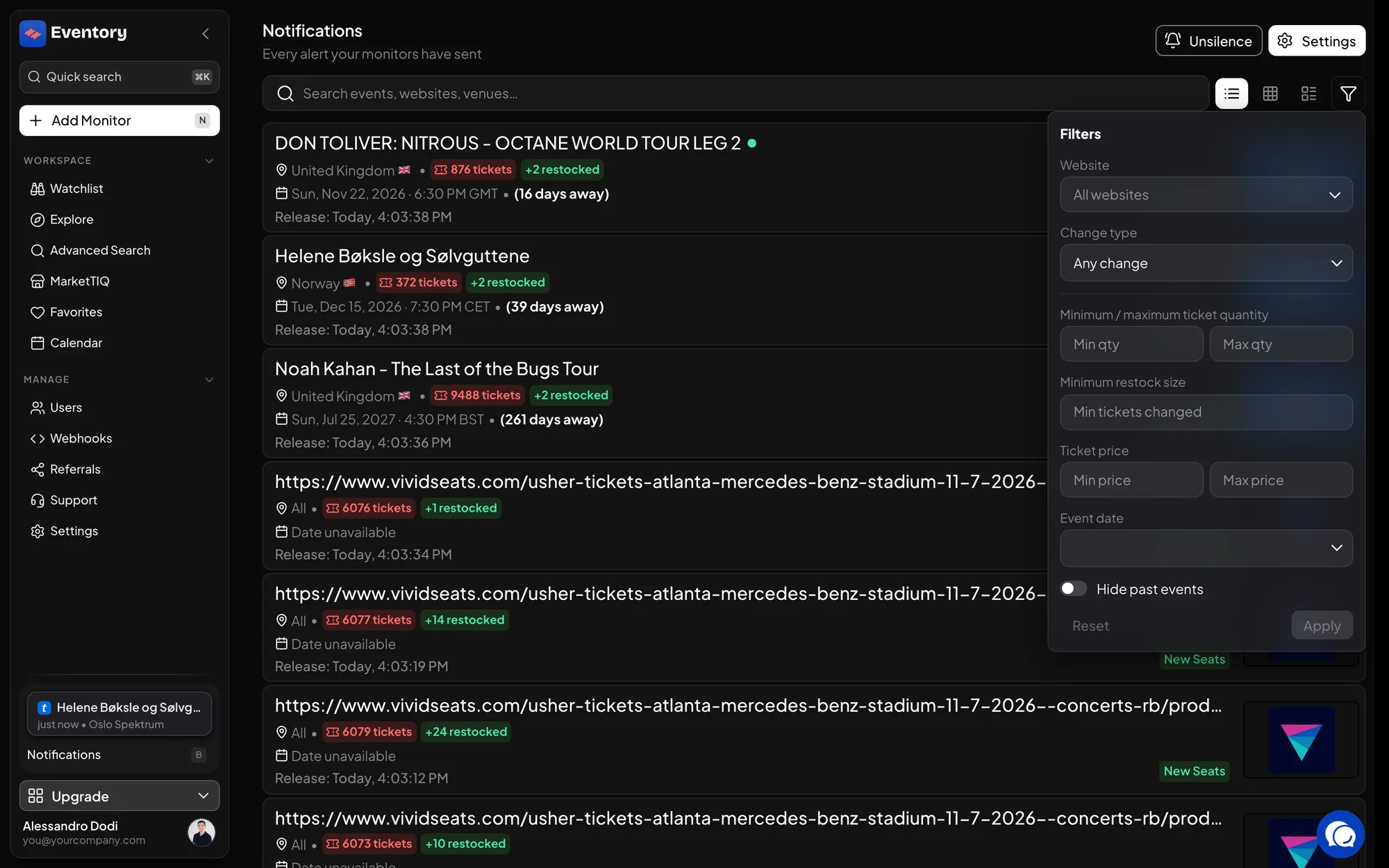
The filter panel: Website, Change type, Min and Max qty, Min tickets changed, Ticket price, Event date and Hide past events. Open one notification in full
Click a notification to open it. The detail view lists the sections that changed with their quantities and prices, and shows where they are in the venue on the sites with a map.
From there you can act on the event: follow the link to the listing, or add or edit a monitor on it without going back to the Watchlist.
Use the timestamp that matters
An alert shows when the restock actually happened, not when the row was written. The two can differ by seconds, and on a slow cycle by minutes, which is the difference between a ping worth chasing and one that is already gone.
If you are judging whether you are fast enough, that is the number to read. It is also why the dashboard sometimes shows a time slightly before the message arrived in Discord.
What one notification contains
A notification is a cycle of change on one monitor, not a single listing, which is why one alert can carry several sections.
- The event, with a short link to it.
- The ticketing site and the region.
- The sections that changed, each with quantity and price.
- How many tickets appeared or disappeared in this cycle.
- The filter set that matched, when the monitor has several.
Minimum restock size, in the page and in the monitor
The same idea exists in two places and it is worth knowing which to use. Min tickets changed on the Notifications page hides small restocks from your view after the fact. Min stock increase on the monitor stops them being sent at all.
Filter the page while you are learning what an event does, then move the number into the monitor once you know it. The page filter is reversible and local; the monitor filter is what actually keeps your Discord channel usable.
When the page says nothing arrived
Check the filter count first: a leftover filter is the most common reason for an empty list. Then check the Watchlist for paused or muted rows, and for rows whose delivery no longer resolves.
An empty list with no filters set and active monitors usually means exactly what it says: the events you watch have not moved. That is the normal state of a working Watchlist most of the time.
Frequently asked questions
How far back does the history go?
Notifications are stored and paged back through the list, so you can review what happened on an event after the fact rather than only in the moment.
Why does an alert show a time earlier than when I got it?
The alert carries the moment the change happened on the site, which is a little before the message reaches you. It is the right number for judging speed.
Can I filter the history by minimum restock size?
Yes, with Min tickets changed. Alerts from before that figure was recorded are hidden while the filter is on, because there is nothing to compare them against.
Do notifications keep arriving if I close the browser?
Your Discord channel and webhook keep receiving, and the history keeps filling. The in-page live stream needs a signed-in session open.
Next steps
Start monitoring
Pick a plan, add your events and let Eventory tell you the moment tickets come back.
API documentation: the reference for developers, next to these guides.