Alerts & delivery
Choose where alerts are delivered
Every monitor has a Delivery that decides where its alerts go: a Discord channel, your own webhook endpoint, or the dashboard only. A monitor left without an explicit delivery uses your workspace default, and a single filter set can override the monitor to route one rule elsewhere. Alerts always appear in the app on the Notifications page and in the desktop app, whatever else you configure.
Before you start
- A monitor to route, and permission to manage your workspace's webhooks.
- For Discord, the Eventory bot in your server, set up from the Webhooks page.
Steps
Set up a delivery channel
Open the Webhooks page from the sidebar. This is where your workspace's delivery targets are managed, whether they are Discord channels or your own HTTP endpoints, and one of them is the default that new monitors inherit.
A workspace normally needs very few: one channel people read during an on-sale, one for everything else, and a webhook if you feed alerts into your own system.
Note: If the Webhooks page shows nothing at all, look for an error rather than assuming the list is empty: a failed load and no webhooks look alike at a glance.
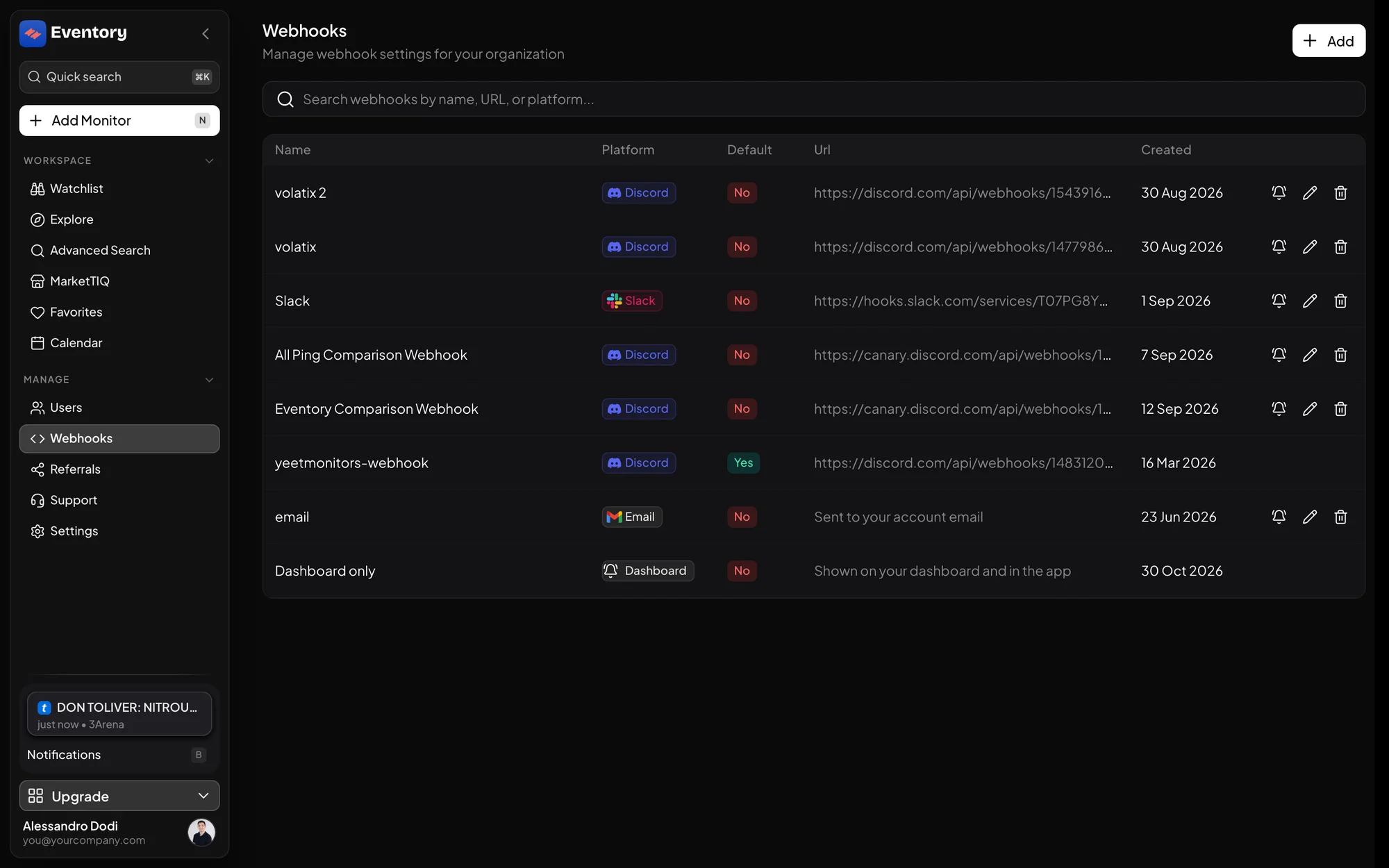
The Webhooks page: every delivery of the workspace with its platform, whether it is the default, the URL and the date. Point a monitor at it
In the monitor editor, pick the channel in Delivery. Leave the field alone and the monitor uses the workspace default, which is what you want for most rows.
Roles lets the alert mention specific Discord roles. That is how one channel can serve several people without everyone reading everything: the alert pings only the roles that care about that event.
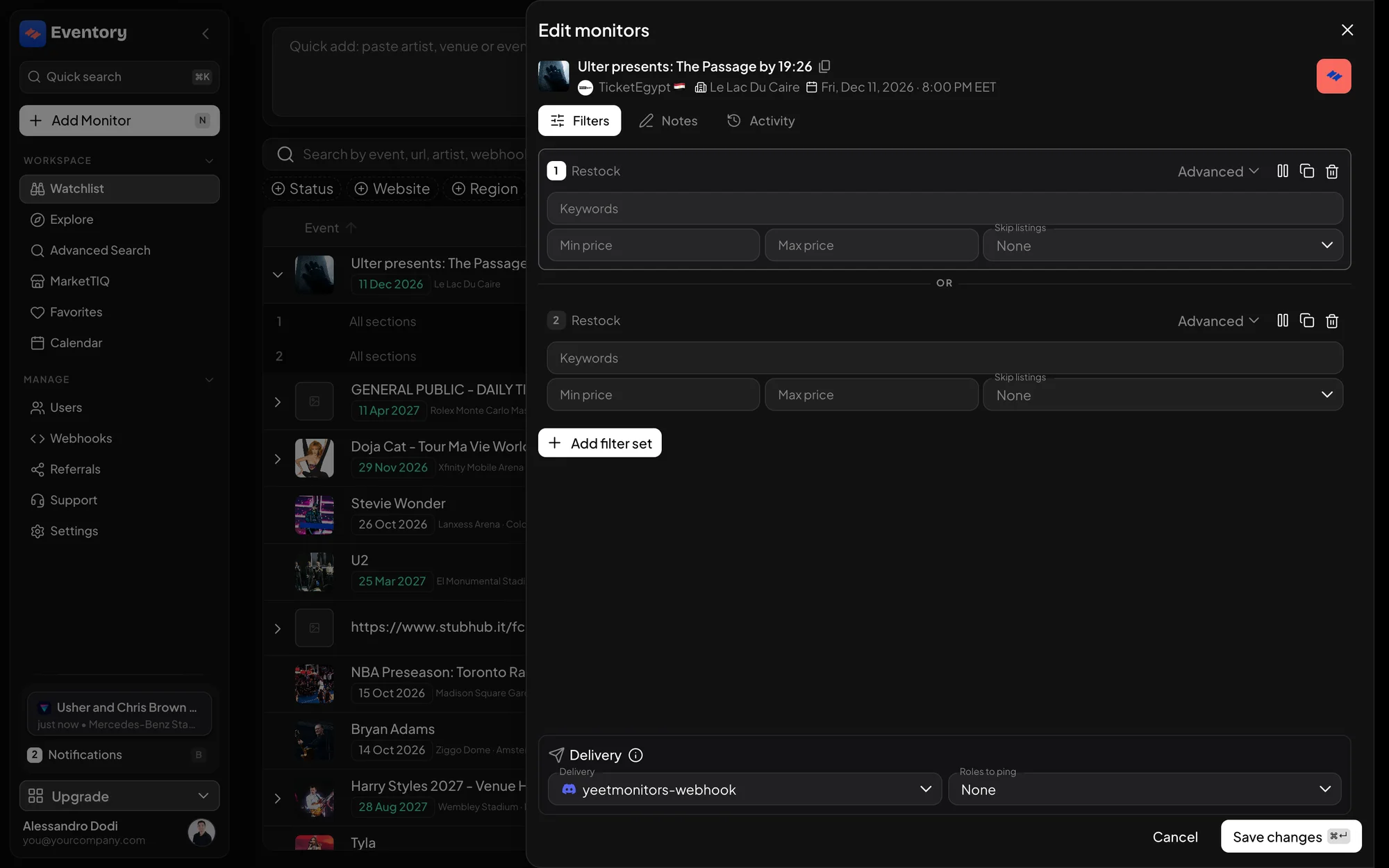
Delivery at the bottom of the monitor editor: the channel and the Roles to ping, written to every filter set of the event. Override the delivery for one filter set
A filter set can route its own alerts, overriding the monitor. That is how one event sends its floor alerts to a channel people watch and its upper-tier alerts to a quieter one.
A set with its own delivery is marked in the editor, and a reset action puts it back on the monitor's shared channel. See Run several filter sets on one event.
Keep a monitor in the dashboard only
Choosing the dashboard-only delivery stops a monitor pushing anywhere external while still recording every alert in the app. It is the right setting while you are calibrating filters on a noisy event, because you can read what it would have sent without waking anyone.
Note the asymmetry: a monitor with no delivery set at all falls back to your default channel and does send externally. Dashboard-only is a choice you make, not what you get by leaving the field empty.
Verify it end to end
Open Notifications and wait for the monitor's first alert, then check the same alert appeared in the channel. The app page is the source of truth: if an alert is there and not in Discord, the problem is the delivery, not the monitor.
If alerts are missing for a whole group of monitors, filter the Watchlist by Delivery and look for Unknown delivery, which finds rows whose channel no longer resolves.
The four places an alert can land
Delivery is not exclusive: the dashboard and desktop app always get the alert, and the external channel is what you are choosing.
- Discord: a channel in your server, with optional role mentions.
- Your own webhook: an HTTP endpoint you control, for your own tooling.
- The dashboard: the Notifications page, always, with a searchable history.
- The desktop app: a native notification on your machine.
Why the link in an alert is short
Alerts carry a shortened event link rather than the full ticketing URL, in the live message and in the stored history alike. Long URLs are what break a Discord embed and get truncated in a notification body, so the short link is what makes an alert readable on a phone.
The link resolves to the same event page, so nothing is lost. If you need the raw URL, the Watchlist row's copy action gives it to you.
Alerts after you sign out
The live stream belongs to a signed-in session. Once you sign out, the app stops subscribing and no new alerts appear in the browser, which is intended: a shared machine should not keep showing a workspace's alerts.
Your Discord channel and your webhook keep receiving as normal, because they do not depend on anyone having the app open.
Frequently asked questions
What happens if I set no delivery at all?
The monitor uses your workspace default channel. If you want nothing sent externally, choose the dashboard-only delivery explicitly.
Can two monitors send to two different Discord servers?
Yes. Each monitor, and each filter set, can point at its own channel.
Can I send alerts to my own system instead of Discord?
Yes, with a webhook. For a full feed rather than a per-monitor push, the API offers a notifications WebSocket; see the API documentation.
Do I need the desktop app to get notifications?
No. It adds native notifications on your machine, which is useful when the browser is not in front of you, but every alert is in the web app too.
Next steps
Start monitoring
Pick a plan, add your events and let Eventory tell you the moment tickets come back.
API documentation: the reference for developers, next to these guides.