Monitors
Run several filter sets on one event
A filter set is one complete set of rules on a monitor, and a monitor can hold several. That lets you watch the same event in more than one way at once, with different sections, prices, methods and even different delivery channels per set, while the Watchlist keeps them together as one expandable row. Each set is evaluated on its own, so an alert tells you which set matched.
Before you start
- A monitor on an event. Filter sets are added from the same editor as the filters.
Steps
Open the monitor and find the filter sets panel
Edit a monitor from the pencil on its Watchlist row. The Edit monitors dialog has three tabs, Filters, Notes and Activity, and opens on Filters: one numbered card per set, each showing the monitoring method in its title and the fields that site supports, with OR written between the cards because an alert fires when any set matches.
A monitor always has at least one set, and the editor refuses to remove the last one. That is why a simple monitor never looks like it has filter sets at all: it has exactly one.
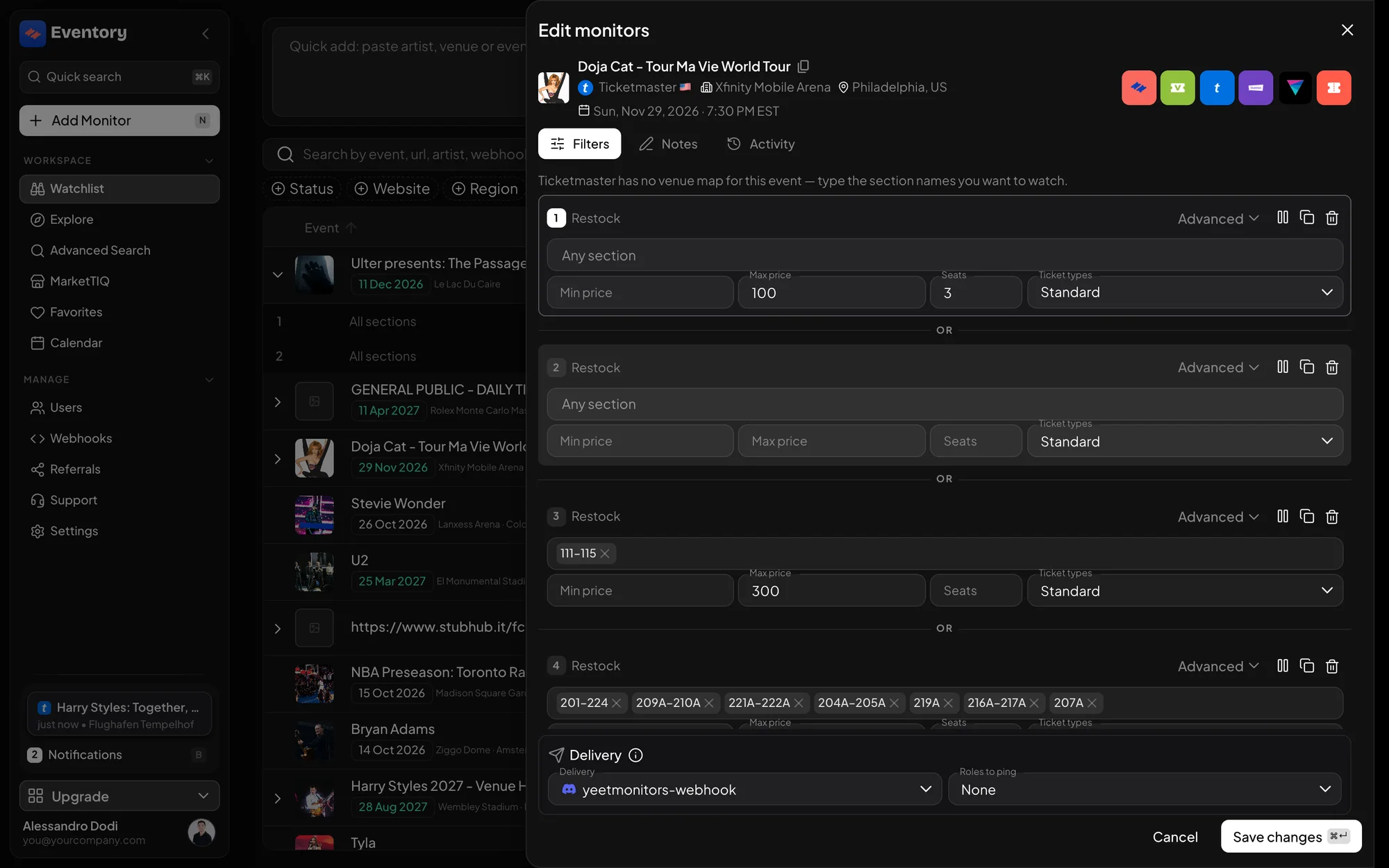
Four filter sets on one Ticketmaster event, numbered and joined by OR, each with its own sections, price band and ticket types. Duplicate the set you already tuned
The fastest way to a second set is the duplicate icon on the card, which copies every field. Then change only what differs, usually the section and the price band.
Add filter set, under the last card, adds an empty one. That is the right move when the second rule has nothing in common with the first, for example a Restock set on the floor and a Stock decrease set on the whole event.
Give a set its own delivery
Each card can route its own alerts. Set a delivery on the card and that set alone goes there, which is how one event feeds two channels: the cheap seats to a general channel, the floor to a channel people actually watch.
A set with its own delivery is marked as such, and there is a reset action to put it back on the event's shared delivery. Without that marker it would be easy to forget why one set's alerts land somewhere else.
Pause a set without touching the others
Each set can be paused on its own. A paused set is labelled Paused and stops producing alerts while the rest of the monitor keeps running.
This is better than deleting a set you may want back: the rules survive, and the event does not need re-adding. Pausing the whole monitor is a separate action on the row.
Save and read the grouped row
Press Save changes and every set is stored together. In the Watchlist the event becomes one row with a filter sets count, expandable to a line per set summarising its rules, and each set has its own edit, pause and delete actions.
The row's collapsed state shows that there are several sets rather than hiding them, so a page of monitors stays readable while still telling you where the complexity is.
When to use a second set instead of a second monitor
Both work, but they organise differently. A second filter set keeps one row per event, which is what you want when the two rules are about the same purchase decision on the same site. A second monitor is right when the site is different, because a monitor watches exactly one site.
Plan limits count events, so grouping rules into filter sets on one event is also the tidier way to stay under a limit while keeping several questions open on the same show.
Patterns that work
Combinations that come up again and again on real events.
- Floor at a high price, upper tier at a low one: two sets, different sections and bands.
- Restock plus Stock decrease: catch inventory coming back and read the demand taking it away.
- Pairs and singles: one set with Seats 2, one without, delivered to different channels.
- A client channel and an internal channel: same rules, two sets, two deliveries.
Editing many sets at once
The editor can open every set of a monitor together when you need to make the same change in all of them, which is the difference between a two-minute edit and twenty clicks.
Across different monitors, use a bulk edit from the Watchlist selection instead. It applies one field to every selected row, and it only offers fields that every selected row can accept.
Frequently asked questions
Do filter sets cost extra events on my plan?
The limit counts events, so several sets on one event stay within one event of your plan. Adding more events is what consumes the limit.
Will I get two alerts if both sets match the same restock?
Each set is evaluated on its own, so a change matching two sets can notify twice, once per set, and each alert says which set it came from. Narrow one of the sets if that duplication is not useful.
Can two sets use different monitoring methods?
Yes. The method belongs to the set, not the monitor, which is the main reason to use a second set.
What happens to the sets if I delete the monitor?
They go with it. Delete a single set from its own row in the expanded view if you only want to drop one rule.
Next steps
- Filter a monitor by section, row and price
- Find and manage your monitors
- Choose where alerts are delivered
Start monitoring
Pick a plan, add your events and let Eventory tell you the moment tickets come back.
API documentation: the reference for developers, next to these guides.