Account & plans
Set alert rules and branding
Two tabs of Settings shape every alert at once. Notifications holds the Alert rules: a Notification cooldown that applies to your whole organization, the minimum time between two alerts for the same event, and a Minimum restock size that applies to this device only, hiding smaller changes from your own feed. General holds Event & Notification Settings and Branding: the Group Name, Color, Footer Image and Thumbnail Image on every alert, with a Discord Message Preview beside them, so a channel you run for clients carries your name rather than Eventory's.
Before you start
- The workspace owner's account for branding; alert rules can be set by any member.
Steps
Open Event & Notification Settings
Open Settings and the Notifications tab. The Alert rules card reads: when an alert is allowed to interrupt you; everything else still shows up in Notifications. Edit opens the two fields, Notification cooldown and Minimum restock size, and each says what it applies to: your organization for the cooldown, this device for the restock size.
The defaults are 0 sec and Every change: no cooldown, nothing hidden. That is the right setting for a small Watchlist and the wrong one for a large one.
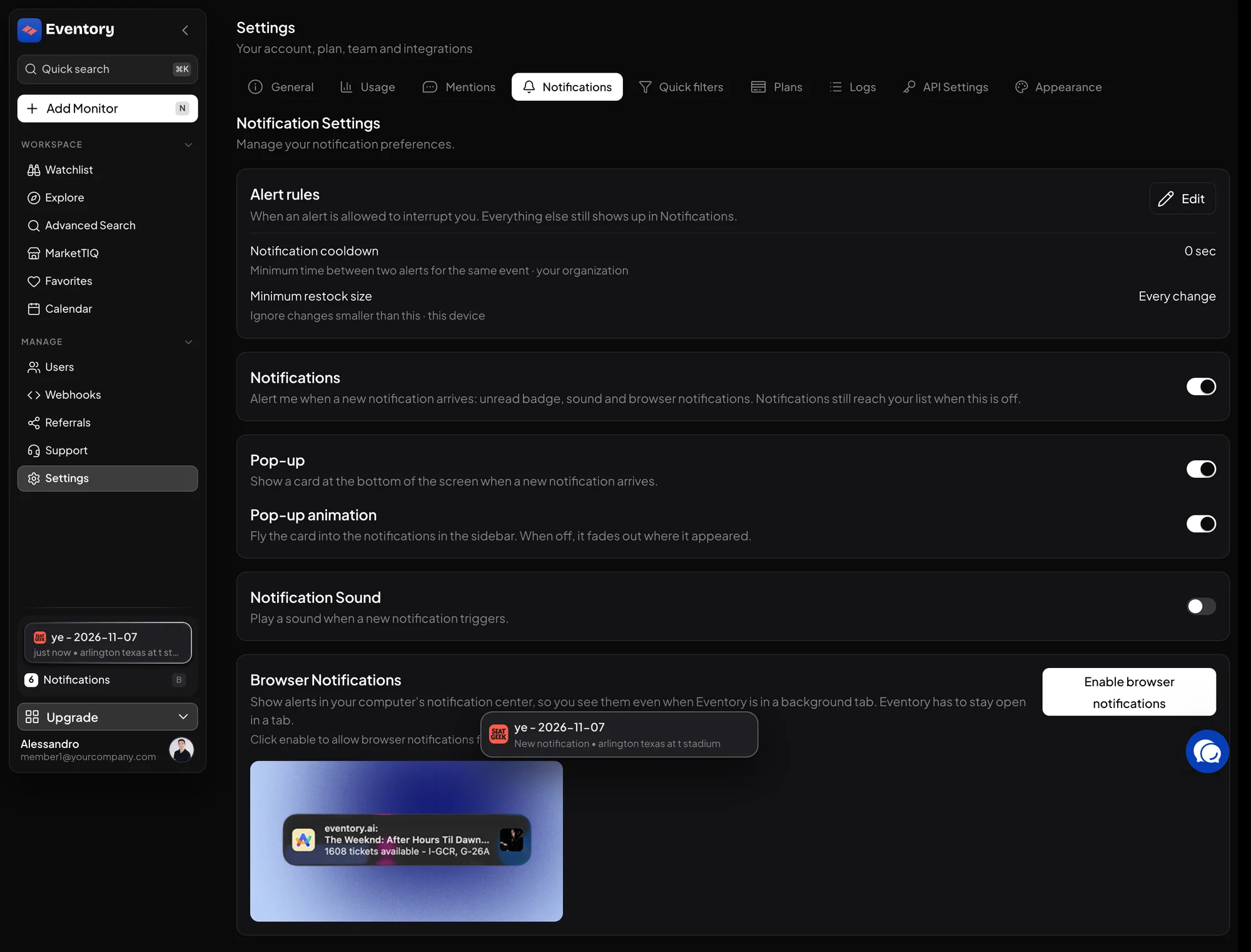
Settings, Notifications: Alert rules with Notification cooldown and Minimum restock size, then the Notifications, Pop-up, Notification Sound and Browser Notifications toggles. Set a minimum restock size
Minimum restock size is in tickets and applies to this device: a restock smaller than this does not interrupt you here, in the pop-up, the sound or the browser notification, but it still reaches your Discord channel and the Notifications list. It is a personal quiet setting, not a workspace rule.
Set it to the smallest quantity you personally act on. To stop small restocks being sent at all, the setting is Min stock increase on the monitor; see Cut down alert noise.
Set a notification cooldown
Notification cooldown, in seconds or minutes, is the shortest gap between two alerts for the same event, and it applies to your whole organization. During a release the same event can change several times a minute; a cooldown turns that into one alert per window with the latest state.
Thirty seconds removes most of the stutter without hiding a real second release. Longer than a few minutes starts to cost you the restock you wanted.
Brand the alerts
On the General tab, the Branding card sets what every alert carries: Group Name as the author, Color as the accent of the Discord embed, a Footer Image and a Thumbnail Image, with Branding Enabled or Disabled for the whole set. The Discord Message Preview next to it renders a sample alert with your settings, so you see the result before any alert goes out.
Upload images at the size Discord shows them; a large file is scaled down and looks soft. Domain, in Event & Notification Settings, is the domain the short links use; it has to be one you control.
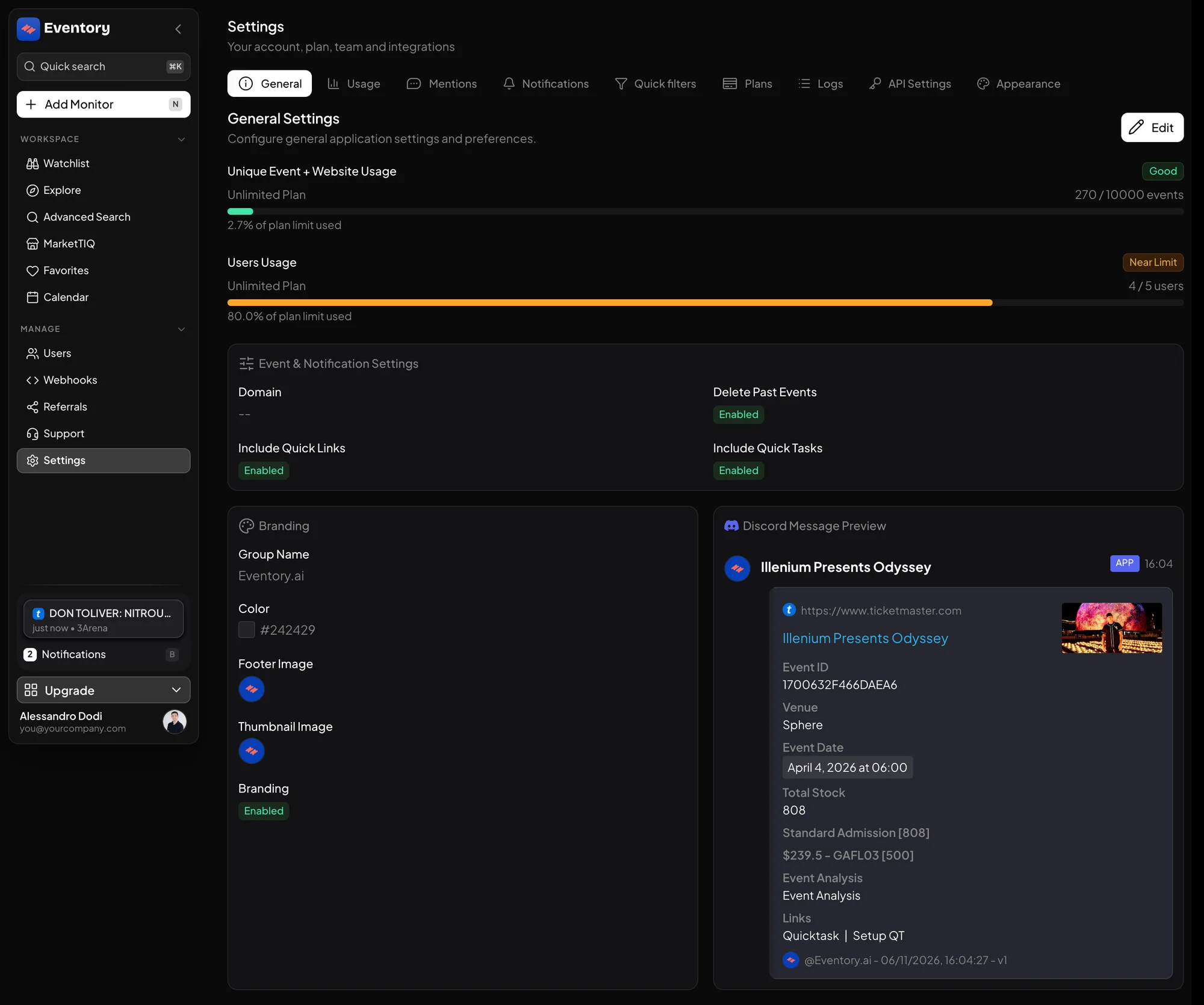
Settings, General: Event & Notification Settings, the Branding card and the Discord Message Preview that renders a sample alert with your branding. Decide what happens to past events
Delete Past Events, in Event & Notification Settings, removes monitors from the Watchlist automatically once their event is over. On a workspace that adds many events a week it is the difference between a Watchlist you read and one you scroll. Include Quick Links and Include Quick Tasks decide whether alerts carry the shortcut links under the embed.
Leave Delete Past Events off if you keep past rows on purpose, for example to copy their filters to the next date.
Workspace rules versus monitor filters
Three layers decide whether you hear about a change. The monitor's filters decide whether an alert is sent at all. The organization cooldown decides whether two alerts on the same event can follow each other that fast. Your device's restock size and the Notifications, Pop-up and Notification Sound toggles decide whether this screen interrupts you.
When an alert seems to be missing, walk the layers in that order: the Notifications list shows everything that was sent, so if it is there and you did not notice, the device settings are the reason.
Branding is per workspace, not per channel
One name and one colour apply to every delivery. A workspace that runs channels for several clients under different names needs a workspace per client, each with its own branding, rather than one workspace with many channels. The Discord Message Preview shows exactly what they will see.
Frequently asked questions
Does the cooldown apply across monitors?
It applies per event, across the whole organization: two alerts on the same event closer together than the cooldown are collapsed, whichever monitor or filter set produced them.
Does the minimum restock size apply to Trackers?
No. Trackers evaluate a rule on a metric and have no restock size; the setting applies to site alerts, and only on the device where you set it.
Can members see the branding settings?
They can see them; changing them is for the owner. The Alert rules, being per device and per organization, are open to every member.
Will Delete Past Events remove a monitor the day of the show?
It removes the row once the event is over, not before it. Alerts on the day still arrive.
Next steps
Start monitoring
Pick a plan, add your events and let Eventory tell you the moment tickets come back.
API documentation: the reference for developers, next to these guides.