Monitors
Save and reuse filters with quick filter presets
A quick filter preset is a saved set of monitor filters. Create it in Settings under Quick Filters with a name, the type of monitor it applies to and the websites it is for, and it appears as a chip in the Add Monitor drawer: one click fills the filter set. The values are copied onto the monitor, so editing the monitor later does not change the preset, and editing the preset does not change monitors already created. Presets exist for site monitors and for Trackers.
Before you start
- A filter you have already tuned and want to reuse, and access to Settings.
Steps
Open Quick Filters in Settings
The Quick Filters section lists the workspace's presets with their Name, Type, Websites, Default flag and when they were created. Until you add one it says there are no quick filters yet.
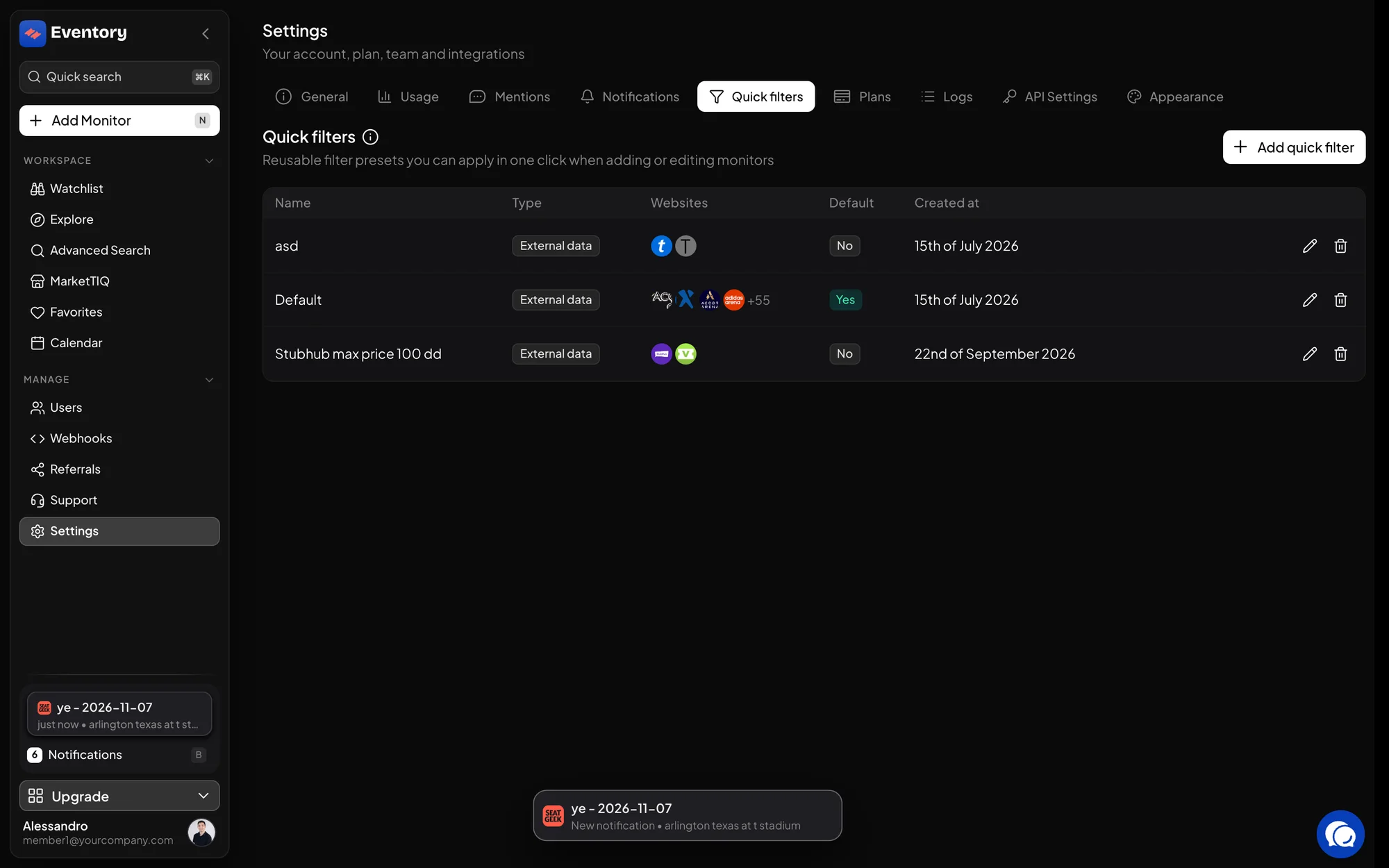
Settings, Quick filters: each preset with its Type, the Websites it is offered on and whether it is the Default. Create a preset for site monitors
Click Add quick filter, keep External data as the Monitor type, give it a Name and pick the Websites it applies to: the hint says the preset is only offered when adding or editing monitors on those sites. Set as default quick filter applies it on its own. Filters holds Monitoring method, Min price, Max price, Min stock and Max stock; Routing holds Delivery, Roles and Priority.
Fill only the fields the preset should set. An empty field in a preset leaves the monitor's field alone, which lets you keep a preset for prices and another for routing and apply both.
- Name: what it does, for example Pairs under 150 or Floor only.
- Websites: the sites the chip is offered on.
- Default: applied automatically to new monitors on those sites.
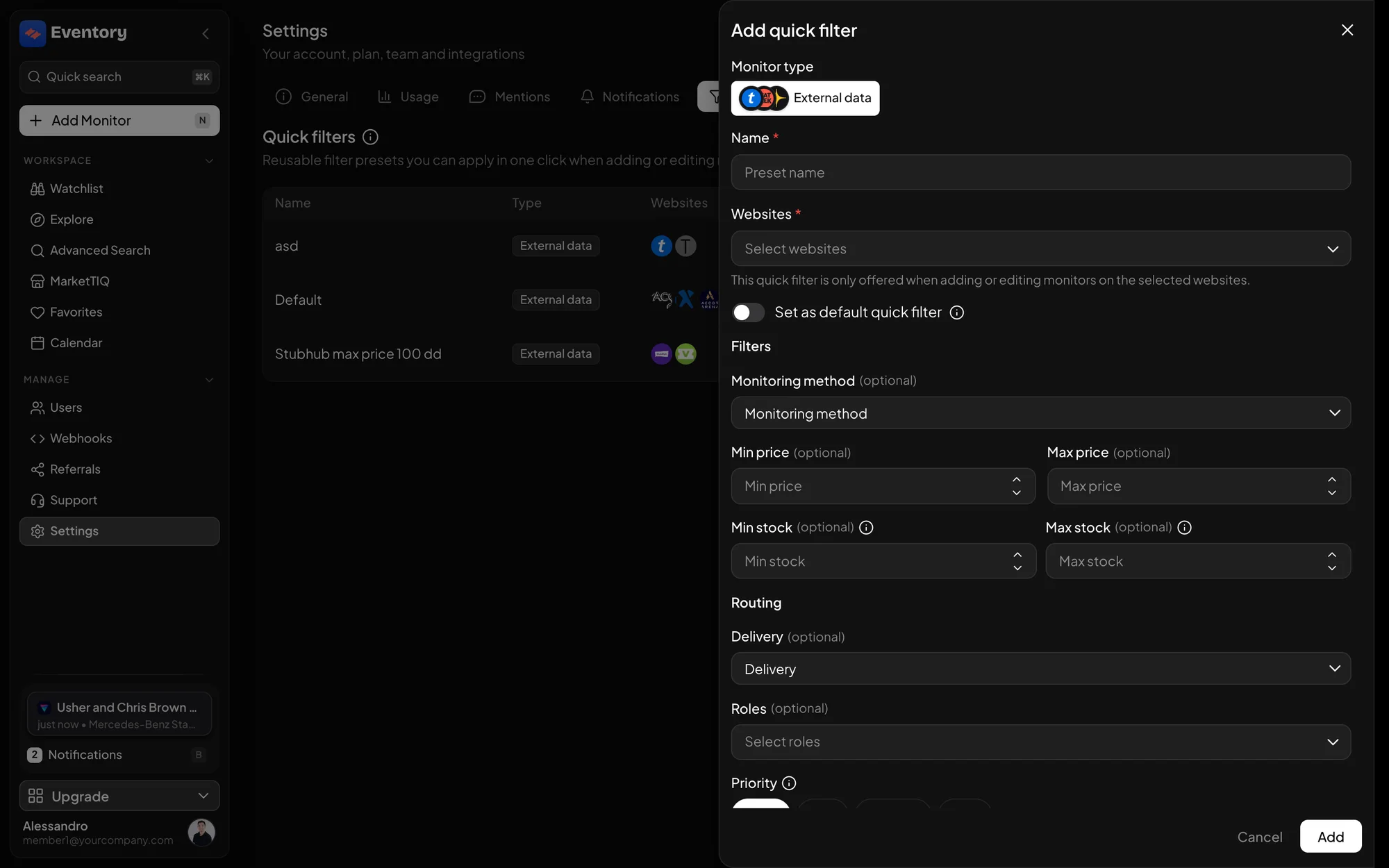
Add quick filter: Monitor type, Name, Websites, Set as default quick filter, then Filters and Routing. Create a preset for Trackers
Choose Eventory event or Eventory artist as the type instead. The form becomes the rule builder: the same conditions, operators and groups as a Tracker, saved as a reusable rule.
Apply it when adding a monitor
In the Add Monitor drawer, the presets for the chosen website show as chips above the filter set. Click one and its values are written into the fields; you can still change anything before saving.
A preset marked Default is applied on its own when the site matches, so a team's standard filter needs no click at all.
Copy on apply
Applying a preset copies values; it does not link the monitor to the preset. That is deliberate: a monitor tuned for one event should not change because someone edited the team preset a month later. To push a changed preset to existing monitors, use a bulk edit from the Watchlist.
Editing and deleting presets
Edit quick filter on a row opens the same form with the saved values, and the change applies to monitors created from then on. Deleting a preset removes the chip; monitors made from it are untouched, because they hold copies. Keep the list short: a dozen presets stop being quick, and the Default flag is better used on one per site than on several.
Presets as team standards
Presets are per workspace, so they are the simplest way to make everyone's monitors start from the same place. Three or four well-named presets, one per way the team buys, do more for alert quality than any amount of after-the-fact tuning.
Frequently asked questions
Where do presets show up?
As chips above the filter set in the Add Monitor drawer, for the website you chose, and in the editor of an existing monitor when you want to re-apply one.
Can a preset set the delivery?
Yes. The Routing part of the preset holds Delivery, Roles and Priority, so a preset can send its monitors to a channel as well as filter them.
Can I apply two presets to one monitor?
Yes. Each writes only the fields it has values for, so a sections preset and a price preset combine.
Does editing a preset change the monitors made from it?
No. Use a bulk edit on the Watchlist to change existing monitors.
Next steps
- Filter a monitor by section, row and price
- Add a monitor to an event
- Find and manage your monitors
- Create a Tracker on an event or artist
Start monitoring
Pick a plan, add your events and let Eventory tell you the moment tickets come back.
API documentation: the reference for developers, next to these guides.