Get started
Get started with Eventory
To get started with Eventory, sign in with Google, Apple or Discord, open the Watchlist, and use Add Monitor to put your first event under watch. You pick the ticketing site, paste the event URL, choose which changes you care about, and tell Eventory where to send the alert. From that moment the event is checked continuously and you get a notification the instant tickets come back or stock drops.
Before you start
- An Eventory account, created with Google, Apple or Discord.
- A Monitors plan, or an active trial, if you want alerts delivered. See Monitors plans.
- The URL of the event you want to watch, on a supported ticketing site.
Steps
Sign in to Eventory
Open eventory.ai and sign in. Accounts are created with Google, Apple or Discord, so there is no separate password to remember. Signing in with the same provider every time keeps you in the same workspace, with the same monitors and the same billing.
Once you are signed in the layout changes: a sidebar appears on the left with every section of the app. Signed-out visitors see the marketing top bar instead, so if you still see that, the sign-in did not complete.
- Google, Apple or Discord sign-in; email sign-in exists only for older accounts.
- A team workspace is shared: your colleagues' monitors are in the same Watchlist.
Open the Watchlist
The Watchlist at /monitor is the home of Monitors. Every event you watch is one row, with the site it is watched on, the filters applied to it and where its alerts are delivered.
On a fresh account the table is empty and shows an empty state with the same Add Monitor button as the toolbar. Nothing is being watched until you add the first row.
Note: Access to the Watchlist comes from your workspace's monitor subscription, not from a plan number. If the page says your subscription is not active, resolve that first: adding items is blocked while payment is past due.
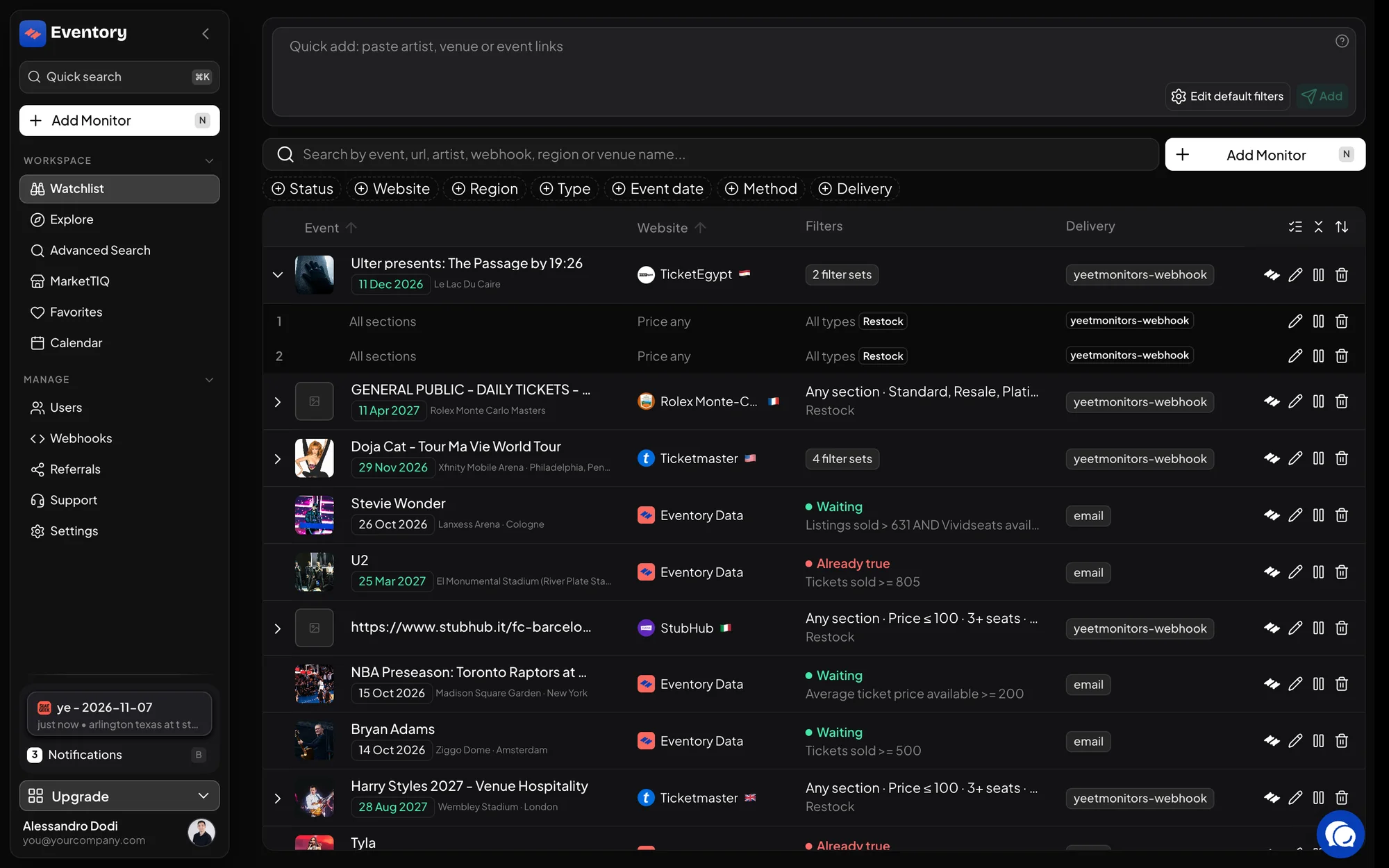
The Watchlist: one row per monitor with the event, the website, the filter summary and the delivery. Add Monitor sits in the sidebar and above the table. Add your first monitor
Click Add Monitor. The drawer that opens asks for the ticketing site, the event region and the event itself, pasted as a URL from that site. Eventory recognises most URLs and fills in the site for you.
Follow Add a monitor to an event for the full walkthrough of each field, including what to paste for sites that need an event id instead of a link.
Choose what counts as news
The second step of the drawer is where you say which change deserves an alert. The Monitoring method decides the event you are waiting for: a restock, or a drop in stock.
Everything else on that step narrows it down: sections, rows, a price range, how many seats have to sit together, how big a restock has to be. Leave a field empty and it does not filter at all, which is the right choice for your first monitor: start loud, then tighten once you see the volume.
- Monitoring method: Restock, or Stock decrease where the site reports it.
- Section, Rows, Keywords: where in the venue.
- Min price, Max price, Seats: which listings are worth it.
- Min stock increase: how big a restock has to be to be worth a ping.
Pick where the alert arrives
The Delivery field routes the alerts. A monitor with no delivery chosen falls back to your workspace default, which is normally the Discord server or webhook you set up when you joined. Leaving it on the default is fine.
Alerts also always appear in the app on the Notifications page and in the desktop app, so you can verify the setup even before a webhook exists. See Where Eventory alerts are delivered.
Save, then watch the first notification land
Press Add event. The drawer closes and the new row appears at the top of the Watchlist, because the table is sorted by Newest by default.
Open Notifications and leave it open. Live notifications stream into the top of the page as they happen, and the same ones are kept in the history, so nothing is lost if you close the tab. On a busy event the first ping can take seconds; on a sold-out event with no movement it can take days, which is the normal state of a working monitor.
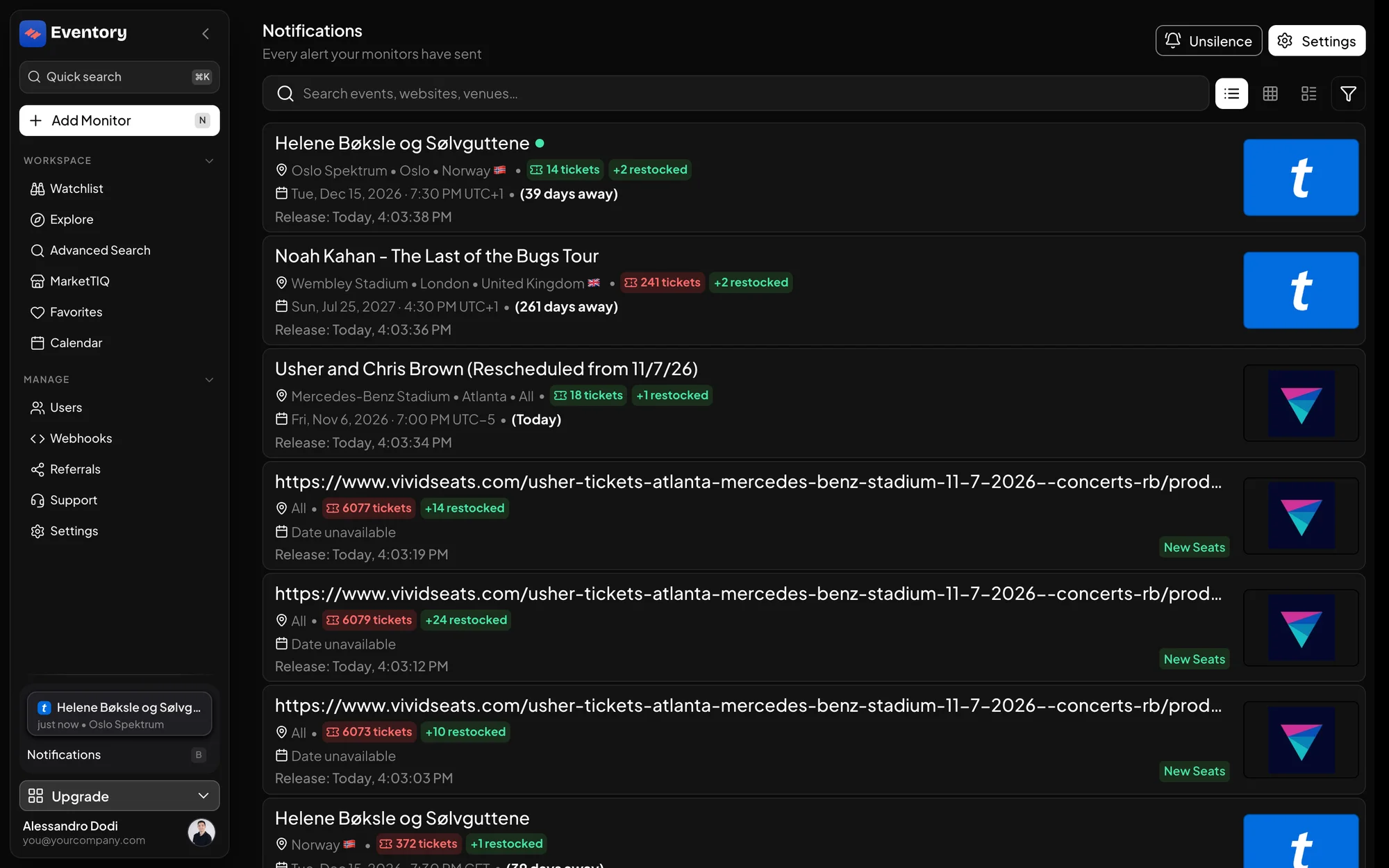
The Notifications page: each card is one alert with the event, the venue, the tickets available, how many were restocked and when.
What to do in your first hour
One monitor proves the setup works. The next few turn Eventory into something you can actually act on.
- Add the five events you care about most, rather than fifty: you will learn more from alerts you read than from alerts you mute.
- Put a Min stock increase on the busiest ones, so a restock of two tickets does not wake you up.
- Install the Chrome extension so you see live availability on the ticketing site itself.
- Open an event page for one of your events and look at what already happened there: sales, prices and availability, day by day.
Monitors, Market Intelligence and the API
Eventory is three products on one account, and new users often start on the wrong one. Monitors is the alerting product: it watches events on ticketing sites and tells you when something changes. Market Intelligence is the research product: full sales history, artist and venue data, the sale calendar and Trackers that watch a metric instead of a site. The API serves the same data to your own tools.
If your question is "tell me the moment tickets come back", you want Monitors. If it is "what is this event actually doing, and what should I pay", you want Market Intelligence. Read Monitors or Market Intelligence before you pick a plan.
Frequently asked questions
Do I need a paid plan to see anything?
No. Event pages, Discover and the glossary are open, and a signed-in account sees more of an event's data. A plan is what buys delivered alerts and the number of events you can watch at once.
How many events can I monitor?
That is the plan limit, and the Watchlist tells you when you reach it with a dialog instead of failing quietly. Extra events can be added to a plan. The current limits and prices are on the Monitors plans page.
Why have I not received any notification yet?
Most often nothing has changed on the event yet, which is the monitor working. Check the Watchlist row is not paused or muted, that its filters are not so narrow that nothing can match, and that its delivery points somewhere you are actually reading.
Can my whole team use the same monitors?
Yes. A workspace is shared: everyone who is invited sees the same Watchlist and the same alerts. Team members are managed on the Users page.
Next steps
- Add a monitor to an event
- Choose where alerts are delivered
- Choose between Monitors and Market Intelligence
Start monitoring
Pick a plan, add your events and let Eventory tell you the moment tickets come back.
API documentation: the reference for developers, next to these guides.