Developers
Use the Chrome extension on a ticketing site
The Eventory Chrome extension adds a panel to the event page of a supported ticketing site with the live availability of each section, the event's Eventory data and a seat map, and lets you start monitoring the event from the page. Install it from the Chrome Web Store, sign in with your Eventory account, and open any supported event page. Live lookups are counted against a per-plan allowance.
Before you start
- Google Chrome, or a browser that installs Chrome extensions.
- An Eventory account. The extension has its own sign-in and does not sign the dashboard out.
Steps
Install and sign in
Open the extension page and follow the Chrome Web Store link to install it. Click the extension icon and sign in with the same provider you use for Eventory.
The extension keeps a session of its own, so signing in there does not affect the dashboard tab, and signing out of one does not sign out the other.
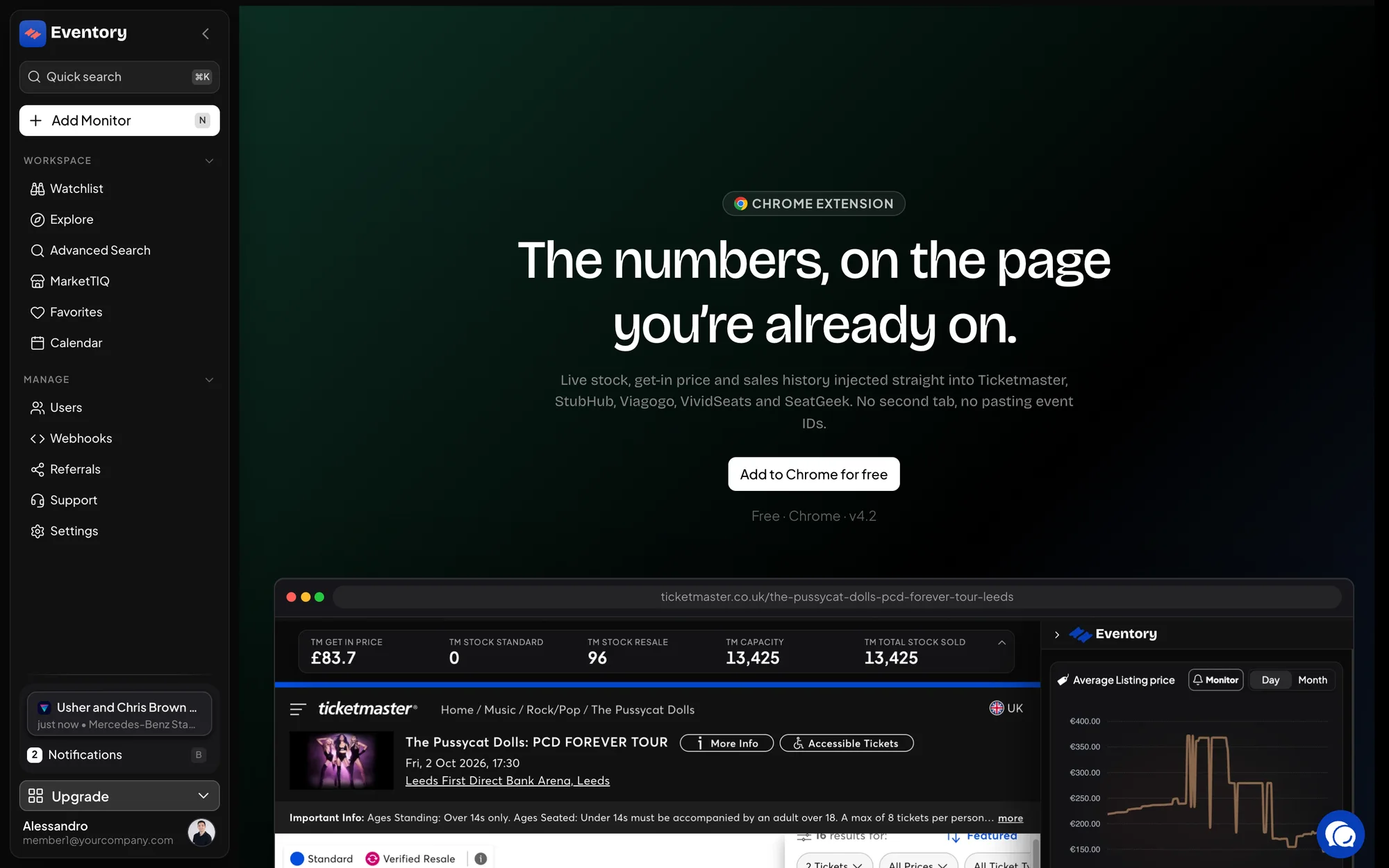
The extension page, with the Chrome Web Store link and what the panel looks like on a ticketing site. Open an event on a supported site
Navigate to an event page on a site the extension supports. The panel appears on the page, as a sidebar or a bar depending on your setting, and recognises the event from the URL.
If the panel is empty, the event is one Eventory has not resolved yet. The site's page is fine; the extension simply has nothing to show for that event until it is in the catalog.
Read live availability and the seat map
The live section shows, per section, how many tickets the site reports available right now, fetched from the site at the moment you open the panel rather than from a stored snapshot. The seat map colours sections by availability and the hover shows the section's numbers.
Each live lookup counts against your plan's allowance. The panel shows when you are near it, and the market data part of the panel keeps working without lookups.
Act from the page
The panel carries the event's Eventory numbers, a link to its event page and a button to start monitoring it, which opens the same Add Monitor flow with the event filled in.
The extension's settings let you turn the panel off, and choose whether it opens as a sidebar or a bar by default.
Why the numbers come from the site, not from Eventory
Availability on a ticketing site changes by the second, so a stored figure would be wrong by the time you read it. The extension asks the site itself each time, which is why it works on any event the site shows and why each lookup is counted.
Eventory's own data in the panel, sales, prices and history, is the collected view and is not counted.
When the panel shows nothing
Live data is not available at the moment is the panel's way of saying the site did not answer. Reload the page and try once more; if it persists on one site, the site is the reason, not your account.
An empty panel on a page that loads fine means the event is not in Eventory's catalog yet. Adding a monitor to it from the dashboard puts it there.
Frequently asked questions
Does the extension work on every monitored site?
It works on the sites listed on the extension page. Monitoring covers more sites than the extension's live panel does.
How many live lookups do I get?
It depends on your plan; the panel shows your usage. Market data in the panel does not consume lookups.
Why did the dashboard not sign out when I signed out of the extension?
By design. The two keep separate sessions so one can be used without disturbing the other.
Is there a desktop app too?
Yes. The desktop app runs the dashboard natively with system notifications; it is a different tool from the browser extension.
Next steps
See it on the ticketing site
The Chrome extension shows live availability and Eventory data on the page you are already looking at.
API documentation: the reference for developers, next to these guides.