Account & plans
Add team members and assign seats
Team members are added on the Users page with Add User and their email. They sign in with their own Google, Apple or Discord account and see the same Watchlist, alerts and data as you. Market Intelligence is per person: the Users table has a Seat column where the owner gives a seat to a member, which adds a paid seat to the plan, or takes it back. A member without a seat can still use Monitors.
Before you start
- The workspace owner's account, and a plan with room for another user.
Steps
Open the Users page
Users is in the sidebar under settings. The table lists every member with their Email, Username, Role, when they were Created and whether they are Connected, Pending or Owner.
Pending means the invitation went out and the person has not signed in yet. Connected means they have, and the workspace is theirs too from that moment.
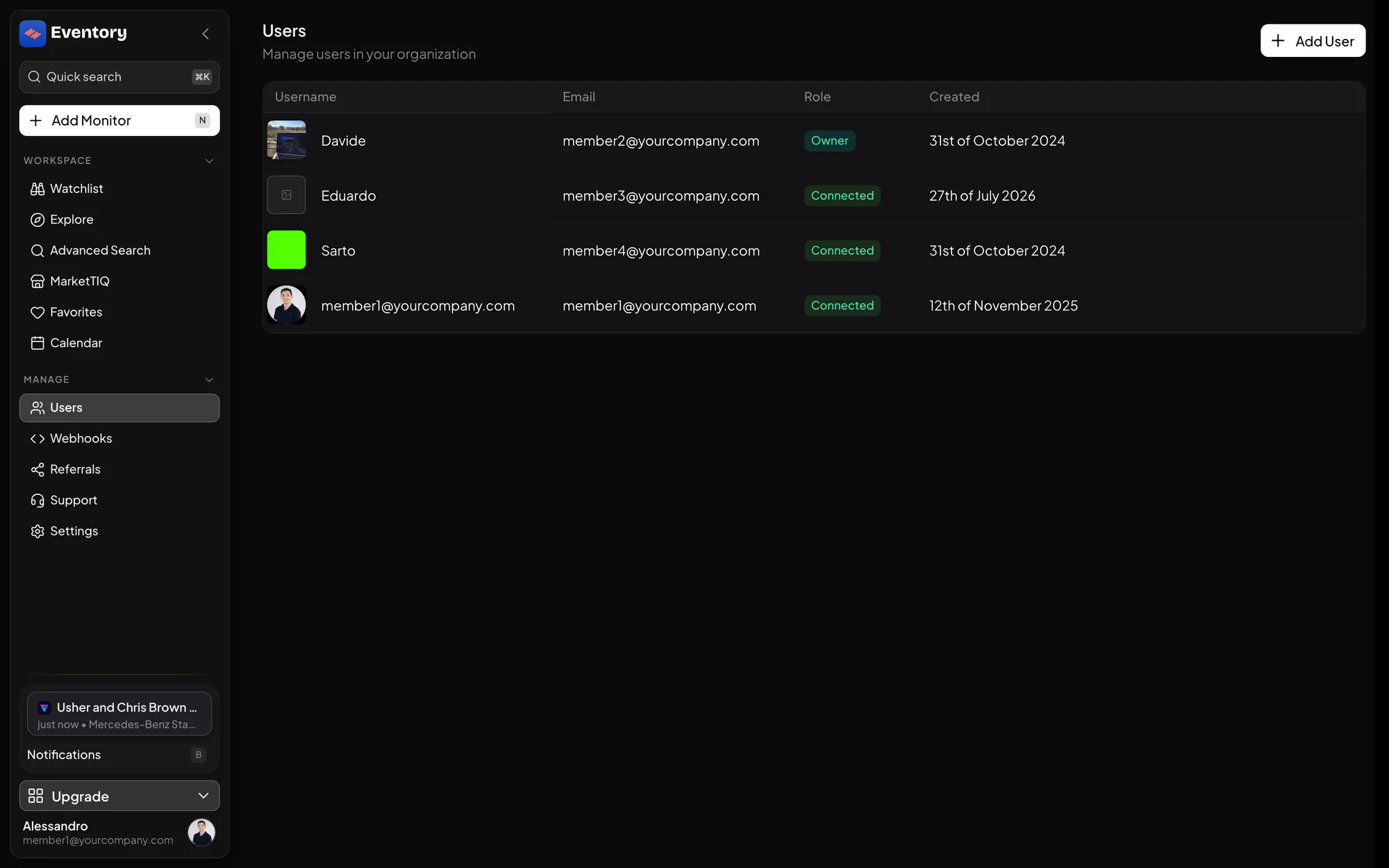
The Users page: one row per member with Username, Email, Role and Created, and Add User at the top right. Add a user
Click Add User, enter the email, and send. The person receives an invitation and signs in with any of the providers; the email just has to match the one they sign in with.
If the plan's user limit is reached, the dialog shows Unlock More Users instead and sends you to the plan page. A past-due payment blocks adding users the same way it blocks adding monitors.
Note: If the invitation email does not arrive, the user row still exists as Pending. Ask the person to sign in with that email directly; the workspace attaches on sign-in.
Give a Market Intelligence seat
Tick Give a Market Intelligence seat in the Add User dialog, or use Add seat in the Seat column of an existing row. The confirmation says it plainly: this adds a paid seat, charged now for the rest of the billing period.
The seat is what opens MarketTIQ, the full sales history, the calendar and Trackers for that person. Monitors needs no seat.
Take a seat back
Remove seat in the same column takes it back and reduces the subscription quantity. The person keeps their Monitors access; only the Market Intelligence pages lock again.
Seats are not pooled: moving one from a person who left to a new hire is a remove and an add, not a transfer.
What a member sees
Everything in the workspace: the Watchlist with everyone's monitors, the notifications, the webhooks and the quick filter presets. There are no per-user monitors; the workspace is the unit.
Billing is the exception. Plan changes, the billing portal and seat assignment stay with the owner.
Discord roles are not users
The Roles table under Users lists Discord roles a monitor can mention in an alert, with their Discord ID. They route attention inside a channel; they do not sign anyone in. A role has to exist in your Discord server first.
One desktop at a time
An account is meant for one person. Signing in on a second desktop signs the first one out, which is deliberate: a shared account is a shared alert feed, and the Users page is the way to give a colleague their own.
Frequently asked questions
Can a member add or delete monitors?
Yes. Every member works the same Watchlist, which is why the row activity records who changed what.
Does a member need a Market Intelligence seat to see event pages?
No. Event pages are open to every signed-in user. The seat opens the full history, MarketTIQ, the calendar and Trackers.
Is a seat charged for the full month when added mid-period?
It is charged for the rest of the current billing period, as the confirmation dialog states, and in full from the next one.
Can I change the owner?
Contact support from the Support page; ownership is not changed from the Users table.
Next steps
Get the full market data
Every sale, every price move and the sale calendar, for research and pricing.
API documentation: the reference for developers, next to these guides.